How to put localhost on your own domain with Cloudflare Tunnel
You have an app running on localhost:3000 and you want a link anyone can open, like https://app.yourdomain.com. Cloudflare Tunnel gives you exactly that, with HTTPS, without opening a single port on your router, and on Cloudflare's free plan.
People do this to show a client a work-in-progress site, to receive webhooks from Stripe or GitHub while developing, to reach a home server or a local AI model from their phone, or to put a link in a README that still works next week. This guide shows two ways: the command line with cloudflared, and a desktop app that does the same steps for you.
How Cloudflare Tunnel works
A small program called the connector (cloudflared) runs on your computer and opens outgoing connections to Cloudflare. When someone opens https://app.yourdomain.com, Cloudflare answers with its certificate, sends the request down one of those connections, and the connector hands it to http://localhost:3000.
Because the connection starts from your side, there's nothing to forward on your router, it works behind carrier-grade NAT and on networks you don't control, and visitors never see your home IP address.
What you need
- A free Cloudflare account.
- A domain that uses Cloudflare's nameservers. It can be registered anywhere: you add it to Cloudflare and change its two nameservers at your registrar. No domain yet? Free names such as
yourname.dpdns.orgare available from DigitalPlat FreeDomain. - The app you want to share, running on your computer.
Option 1: the command line, with cloudflared
Install cloudflared from Cloudflare's releases page or your package manager, then:
1. Log in and pick your domain
cloudflared tunnel loginThis opens a browser so you can choose the domain, and saves a certificate to ~/.cloudflared/cert.pem.
2. Create a tunnel
cloudflared tunnel create my-laptopIt prints the tunnel's ID and writes its credentials to ~/.cloudflared/<TUNNEL-ID>.json.
3. Point a hostname at the tunnel
cloudflared tunnel route dns my-laptop app.yourdomain.comThis adds a DNS record in Cloudflare that sends app.yourdomain.com to your tunnel.
4. Say where requests should go
Create ~/.cloudflared/config.yml:
tunnel: <TUNNEL-ID>
credentials-file: /home/you/.cloudflared/<TUNNEL-ID>.json

ingress:
  - hostname: app.yourdomain.com
    service: http://localhost:3000
  - service: http_status:404   # everything else
Each extra app is another hostname and service pair above the last line, plus another route dns command.
5. Run it
cloudflared tunnel run my-laptopOpen https://app.yourdomain.com and your app answers. The tunnel lives as long as that terminal; to keep it running in the background and after a restart, set cloudflared up as a system service, as described in Cloudflare's tunnel documentation.
Option 2: no terminal, with TunnelPup
TunnelPup is a free, open-source desktop app for Windows, macOS and Linux that does the steps above through Cloudflare's API and runs its own bundled copy of cloudflared, so there's nothing to install or type.
- Connect Cloudflare. Click Create token: Cloudflare's token form opens with most permissions filled in. Add Account → Cloudflare Tunnel → Edit, create the token and paste it in. TunnelPup keeps it in your system keychain and creates a tunnel for this computer.
- Add a domain. Pick one already on Cloudflare, add one you own (TunnelPup shows the two nameservers to set and waits for them), or follow the steps for a free DigitalPlat name.
- Add a route. Type a name (
app), pick the port (apps already running are suggested) and click Add. TunnelPup sets up the routing rule and the DNS record, then loads the link through Cloudflare before it shows it to you. - Share the link with Copy link.
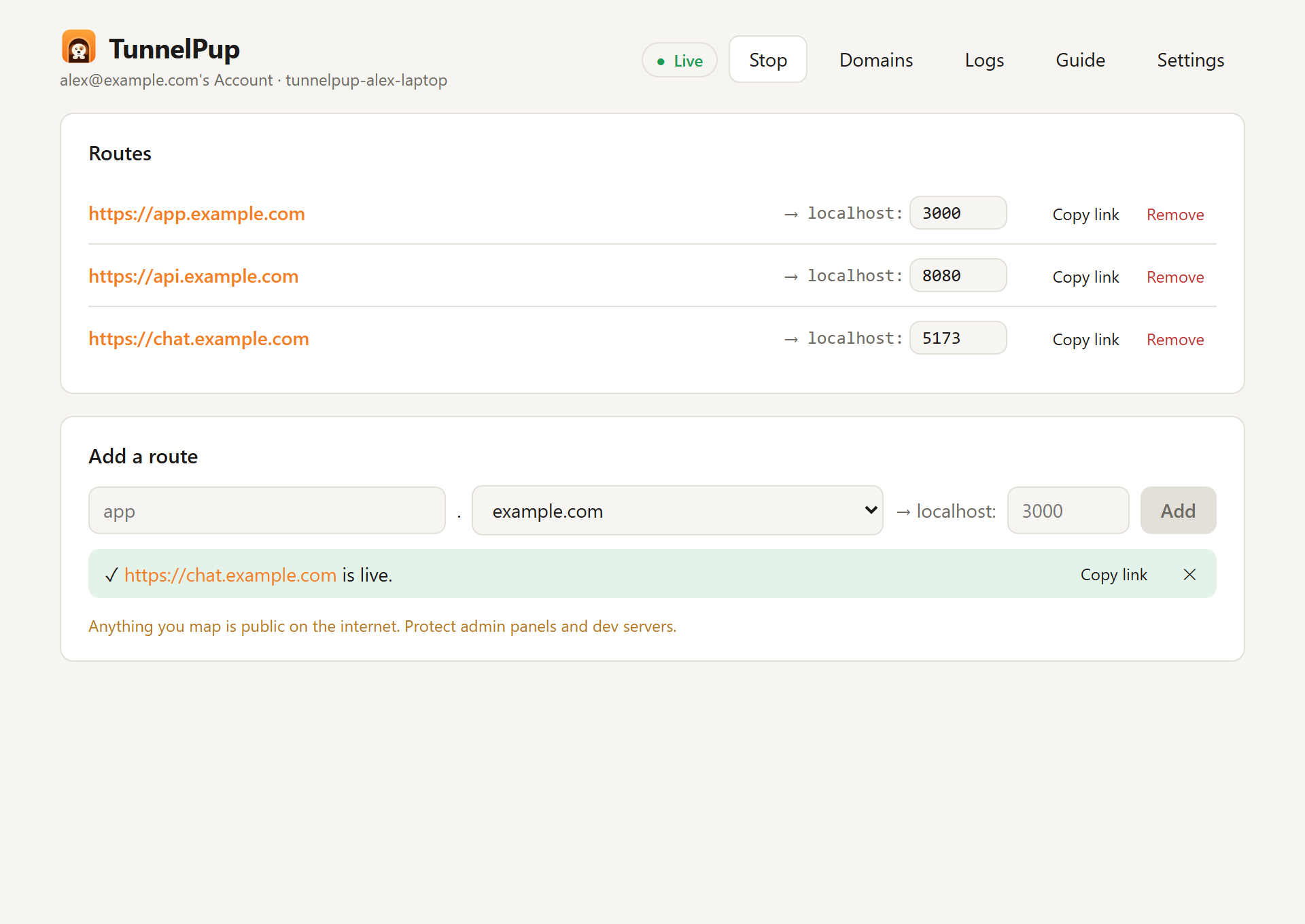
It lives in the system tray, reconnects by itself, and can start when you log in. It also leaves any cloudflared setup you already have alone: it uses its own tunnel and never takes over a DNS record it didn't create.
Why not a quick tunnel?
cloudflared tunnel --url http://localhost:3000 gives you a link on trycloudflare.com with no account at all, which is handy for a one-off. The address is random and changes every time you run it, though, so it's no good for a webhook URL, a bookmark or a link you send to a client. A tunnel on your own domain keeps the same address every time.
When the link doesn't work
| What you see | What it usually means |
|---|---|
| "This site can't be reached" right after adding the name | Your computer or router looked the name up before the DNS record existed and is remembering "doesn't exist" for a while. Wait, flush your DNS cache, or try another network or your phone's mobile data. |
| 502 Bad gateway | The tunnel works but nothing is answering on that port. Start your app, and check the port number. |
| Cloudflare error 1033 or HTTP 530 | The tunnel isn't connected. Check that cloudflared (or TunnelPup) is running. |
| 403 or 400, "Invalid Host header" or "Blocked request" | Some dev servers only answer to localhost. Allow your hostname in the dev server's settings (Vite's server.allowedHosts, Django's ALLOWED_HOSTS) or set the Host header the app expects. TunnelPup detects these apps and handles it when you add the route. |
Before you share
Everything you route is public on the internet. Anyone with the link can open it, and links get passed around.
- Don't route admin panels, databases or development tools unless they have their own login.
- For anything private, put the hostname behind Cloudflare Access, so visitors have to sign in (for example with a one-time code sent to an allowed email address) before they reach your app.
- Your computer serves the traffic, so it has to be on, with the connector running, for the link to work. When you stop the connector, the link stops too.
Questions
Is Cloudflare Tunnel free?
Yes, tunnels are included in Cloudflare's free plan. You need a domain, which can be one you already own or a free one.
Can I share several apps at once?
Yes. One tunnel can serve many hostnames, each pointing at a different local port: app.yourdomain.com to port 3000, api.yourdomain.com to 8080, and so on.
Can I use it from several computers?
Yes. Give each computer its own tunnel and its own hostnames.
Skip the terminal
TunnelPup does all of this from one window: token, domain, route, link. Free and open source under the MIT licence.